ccleaner怎么关闭CCleaner有新版本时发送通知?-ccleaner关闭CCleaner有新版本时发送通知的方法
时间:25-06-24
ccleaner是一款实用的系统优化和隐私保护工具,那么ccleaner怎么关闭ccleaner有新版本时发送通知?ccleaner关闭ccleaner有新版本时发送通知的方法?下面一起来看看吧!
免费影视、动漫、音乐、游戏、小说资源长期稳定更新! 👉 点此立即查看 👈

ccleaner怎么关闭CCleaner有新版本时发送通知?
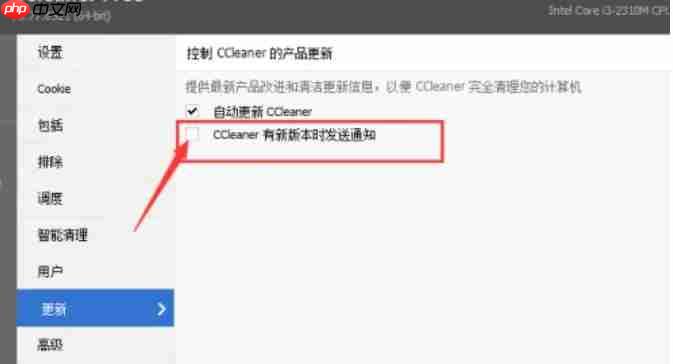
1、进入设置界面:在CCleaner主界面左侧菜单中,点击“选项”按钮,打开软件的设置窗口。

2、切换到更新设置:在选项界面中,找到并点击“更新”标签,进入更新相关配置页面。
3、取消勾选更新提示:在更新设置里,取消选中“CCleaner有新版本时发送通知”这一项即可完成设置。
这就是ccleaner怎么关闭CCleaner有新版本时发送通知?-ccleaner关闭CCleaner有新版本时发送通知的方法的全部内容了,希望以上内容对小伙伴们有所帮助,更多详情可以关注我们的菜鸟游戏和软件相关专区,更多攻略和教程等你发现!
专题合集
精彩合集,奇葩无下限相关文章


大家还在看
-

- 《神火大陆》希尔神域第11层奇遇任务1攻略
-
26-04-01
-

- 金铲铲之战S17拉亚斯特技能费用介绍
-
26-04-01
-

- 金铲铲之战阿狸的光坏神器效果一览
-
26-04-01
-

- 《蓝色星原:旅谣》芃芃介绍
-
26-04-01
-

- 《无径之林》建筑雕像解锁条件介绍
-
26-04-01